
RepCount can start your rest timer for you as soon as you finish a set, so you don't have to remember to tap it. The setting is called Auto-start timer, and it is off until you turn it on.
Turning it on
The setting sits in two places — use whichever is easier to find. It is the same setting in both.
From the timer panel
This is the same on iPhone and Android.
- Open a workout.
- Tap the timer button to bring up the Timers panel.
- Tap the ... in the corner of that panel.
- Turn on Auto-start timer — it is the first row.
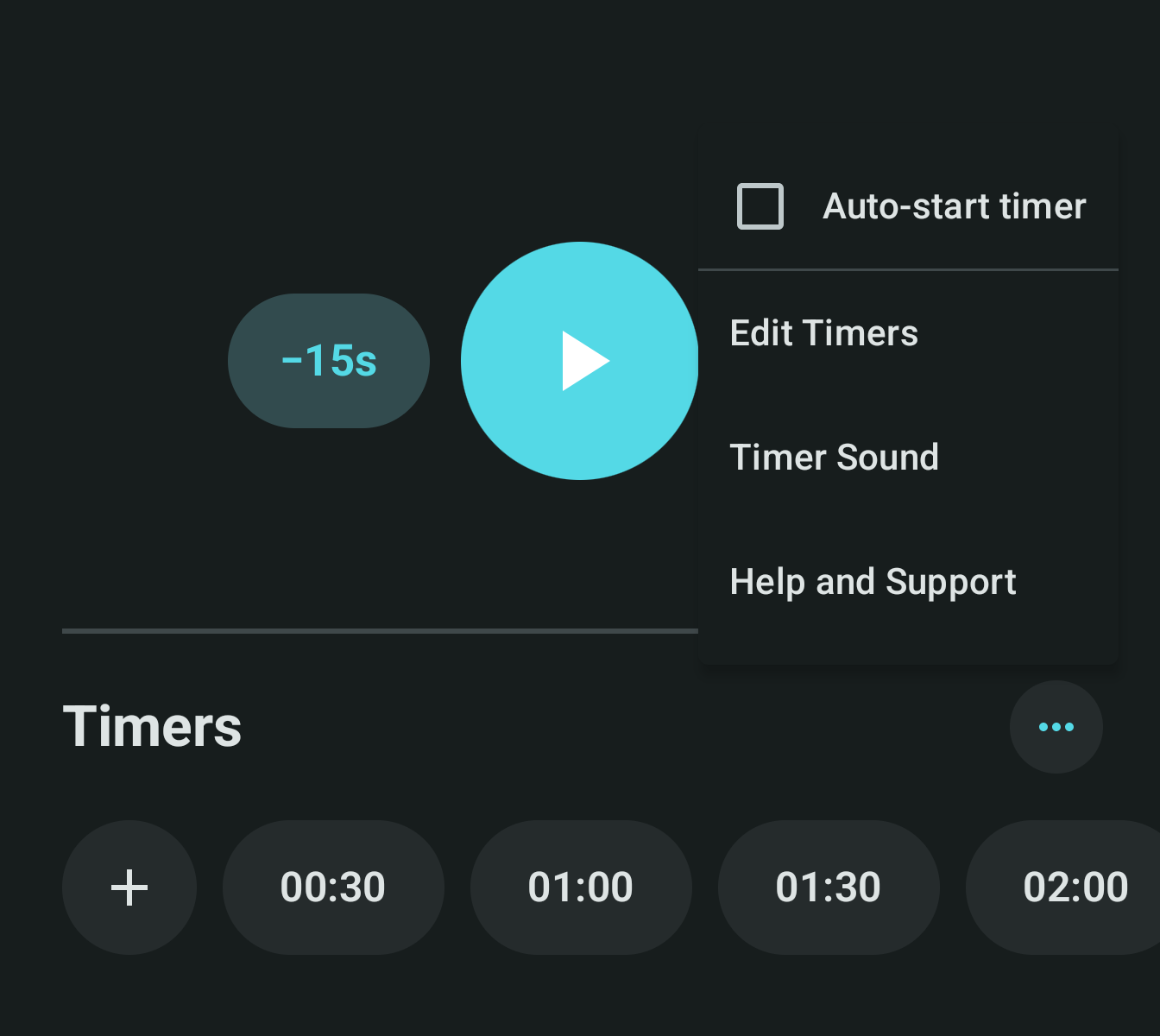
From Settings on iPhone
- Open the Profile tab.
- Tap Settings.
- In the Timer section, turn on Auto-start timer — just below Timer Sound.
From Settings on Android
- Tap the menu button (☰) at the top of the screen.
- Tap Settings.
- In the Workout Log section, turn on Auto-start timer — just below Keep screen on.
How it works
- The rest timer starts on its own once you have filled in a set.
- It counts down from your default timer length.
- In a superset it waits until every exercise in that round is filled in, so it starts once per round rather than once per exercise.
- If a timer is already running, it is left to finish — auto-start will not cut it short and restart it.
- It is a per-device setting, so if you also use RepCount on a tablet or a second phone, turn it on there too.
On Android, turning the setting on asks for permission to send notifications. The timer alerts you through a notification so it can still reach you when RepCount isn't the app in front of you — if you turn that permission down, allow notifications for RepCount in your phone's settings.
Not hearing the timer?
If the timer starts but you don't hear it, that is a separate sound setting. See No sound on the timer? Here is how to fix it.